Last, if you want to use child cost items' Categories to calculate them in a formula, you can do it in their parent cost item, in this example the total in Main contains 20% increase for health and safety related to the Labor category:
File "C:\Users\Sahru\AppData\Roaming\Blender Foundation\Blender\4.5\extensions.local\lib\python3.11\site-packages\lark\parsers\xearley.py", line 125, in scan
raise UnexpectedCharacters(stream, i, text_line, text_column, {item.expect.name for item in to_scan},
lark.exceptions.UnexpectedCharacters: No terminal matches '2' in the current parser context, at line 1 col 29
IfcColumn, location=”Lantai 2”
^
Expected one of:
* COMMA
* PLUS
I find very useful testing the query first in the Search panel to see if it captures the expected elements:
to get familiar with the available Quantity Sets for each class use the building smart webpage, this snippet is from IfcColumn, when you scroll down there are all available property sets and the link to the quantity one
..or simply select a column and go to the quantity set panel:
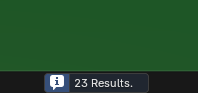
@sahrul Looking at your screenshot you are selecting all IfcBeams with TypeName TB1_30x40. But you can just unselect all (doubletap in the 3D viewport -shortcut- "A" (or mouseclick somewhere at the "freeSpace" (now everything is unselected). Press at search and you will get at the bottom of the blenderwindow a message how many objects ar selected.
And if you take a look at the 3D Viewport you see the selected elements highlighted.
Link to the "selector-" syntax also used at search and csv-tool too--> https://docs.ifcopenshell.org/ifcopenshell-python/selector_syntax.html It´s also linked in BonsaiUI click on the interrogation mark "?"
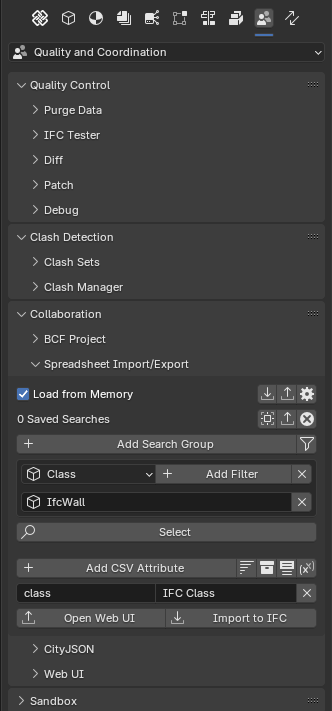
Same syntax at .csv tool, it´s also good to add a new windowarea (to check the wanted P-Q-Sets (Names/Labels...)) in the "Add CSV-Section:
Steverugi also posted some vids and advices, maybe you will find it with the osarch-search, or he´s active responding.


Comments
Thanks @Massimo @steverugi
Last, if you want to use child cost items' Categories to calculate them in a formula, you can do it in their parent cost item, in this example the total in Main contains 20% increase for health and safety related to the Labor category:
Is this an example of a query that can be used in a CSV?
I tried following the examples there, but it gave an error.
@sahrul
Yes, what goes in the "query" column of the .csv to import.
Please share more info on the query generating the error
Thanks
this
Is this setting correct?
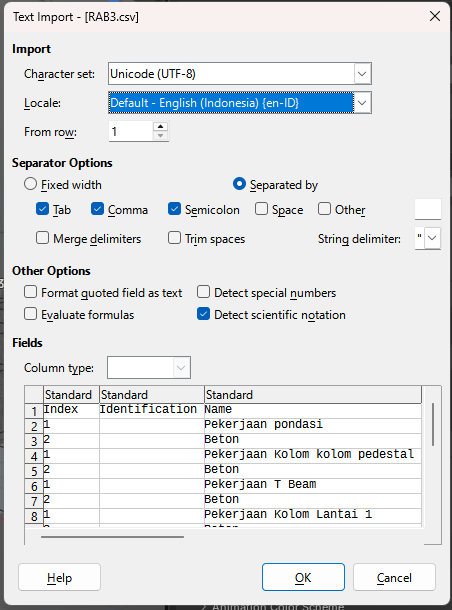
File "C:\Users\Sahru\AppData\Roaming\Blender Foundation\Blender\4.5\extensions.local\lib\python3.11\site-packages\lark\parsers\xearley.py", line 125, in scan
raise UnexpectedCharacters(stream, i, text_line, text_column, {item.expect.name for item in to_scan},
lark.exceptions.UnexpectedCharacters: No terminal matches '2' in the current parser context, at line 1 col 29
IfcColumn, location=”Lantai 2”
^
Expected one of:
* COMMA
* PLUS
I want to include the volume of IfcColumn only at Level 2, what would be the appropriate query?
@sahrul
please check Qto_ColumnBaseQuantities:
You can use GrossVolume in "Property" column and IfcColumn, Location = "Level 2" in the "Query" column
I find very useful testing the query first in the Search panel to see if it captures the expected elements:
to get familiar with the available Quantity Sets for each class use the building smart webpage, this snippet is from IfcColumn, when you scroll down there are all available property sets and the link to the quantity one
..or simply select a column and go to the quantity set panel:
@sahrul
from your file
please check your double quotes:
Thanks @steverugi, It Worked
I tried this but nothing was selected, I want to select based on name or type.
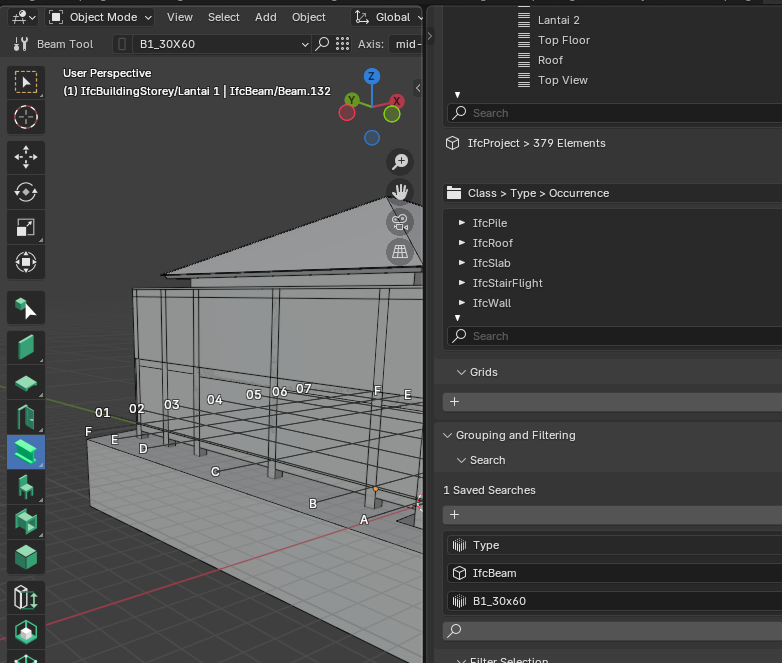
@sahrul
sorry I can't see much of your query , here an example from my model:
which generates the query visible by clicking on the little funnel next to "Add Search Group"
Is there something wrong?
Interesting...
BB version: bonsai_py311-0.8.4-alpha250904-linux-x64
@sahrul
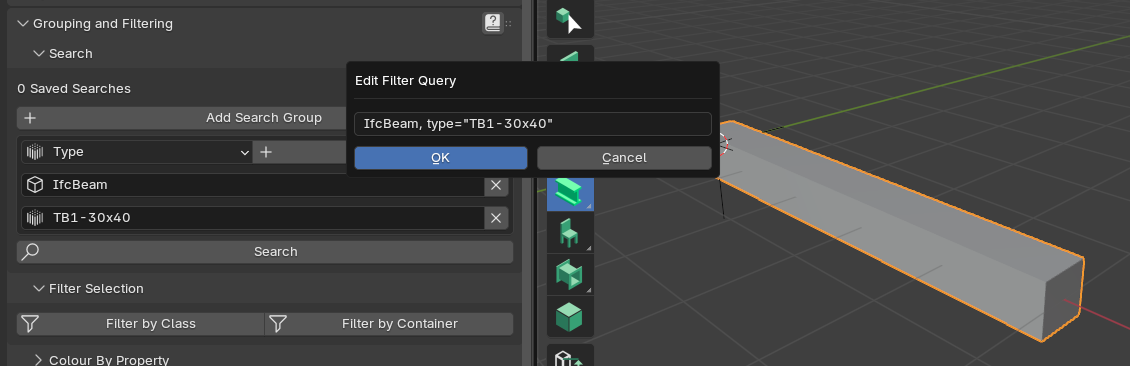
looks OK here
can you share your model?
My file is corrupted, I accidentally clicked "Convert To Blender File."
this
@sahrul
looks OK now
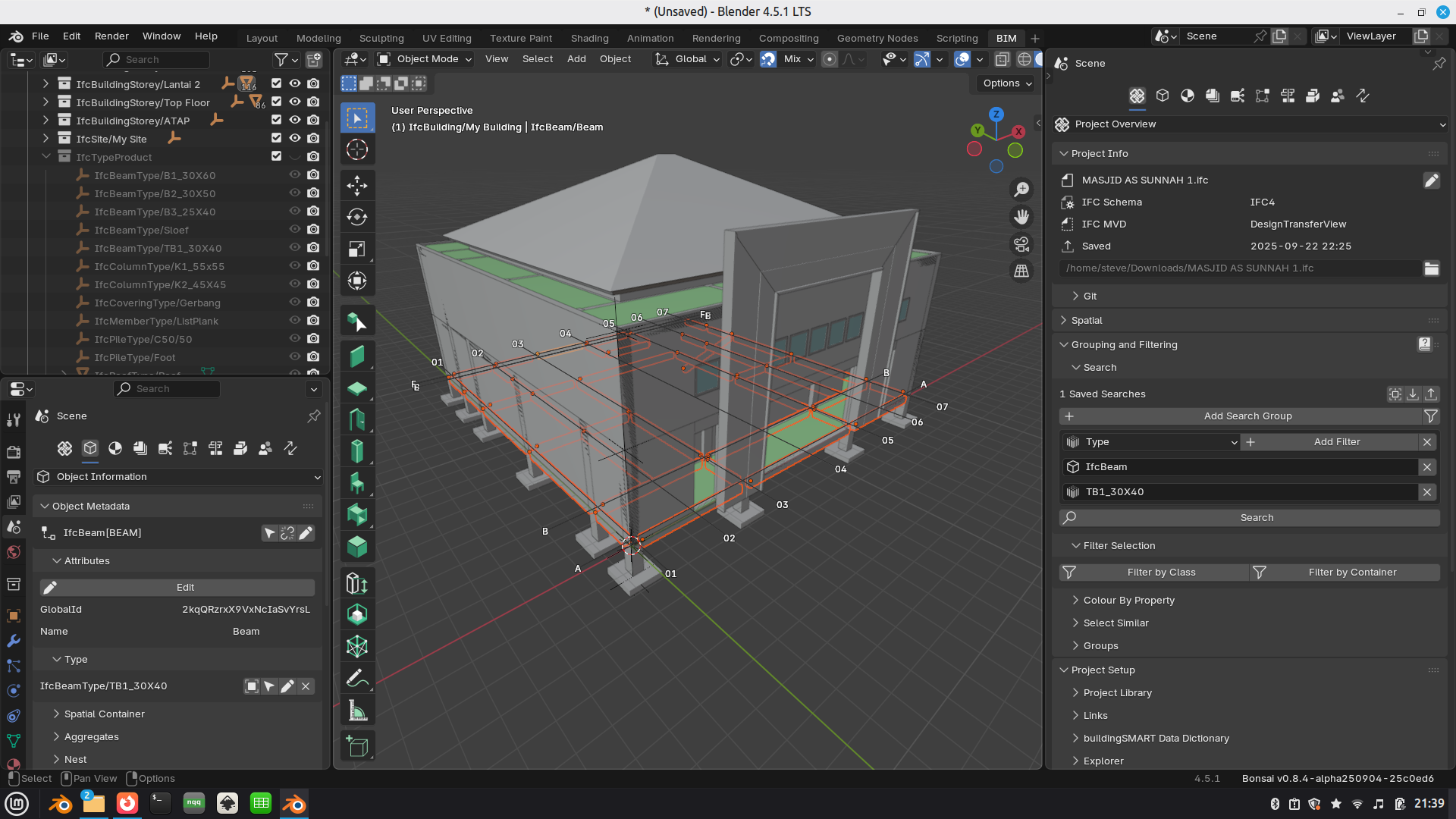
Based on the video I uploaded, what is wrong?
Does this have an effect?
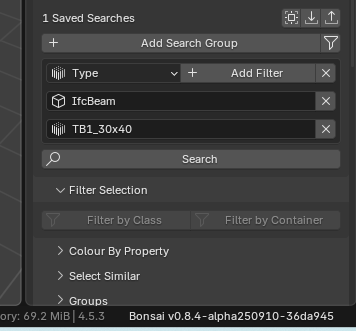
@sahrul Looking at your screenshot you are selecting all IfcBeams with TypeName TB1_30x40. But you can just unselect all (doubletap in the 3D viewport -shortcut- "A" (or mouseclick somewhere at the "freeSpace" (now everything is unselected). Press at search and you will get at the bottom of the blenderwindow a message how many objects ar selected.

And if you take a look at the 3D Viewport you see the selected elements highlighted.
Link to the "selector-" syntax also used at search and csv-tool too--> https://docs.ifcopenshell.org/ifcopenshell-python/selector_syntax.html It´s also linked in BonsaiUI click on the interrogation mark "?"
Same syntax at .csv tool, it´s also good to add a new windowarea (to check the wanted P-Q-Sets (Names/Labels...)) in the "Add CSV-Section:
Steverugi also posted some vids and advices, maybe you will find it with the osarch-search, or he´s active responding.
I haven’t succeeded yet.
is it only linux that can do this ?
@sahrul
works in my other laptop with windows 10 too
make sure the
Xis the same case (upper or lower) as its original type nameHaha, it turns out the problem was with the letter X. Thanks @steverugi