

Phase visibility Problem (Help request)

I am finishing my first approval project with Bonsai and I have encountered a problem that I cannot solve on my own.
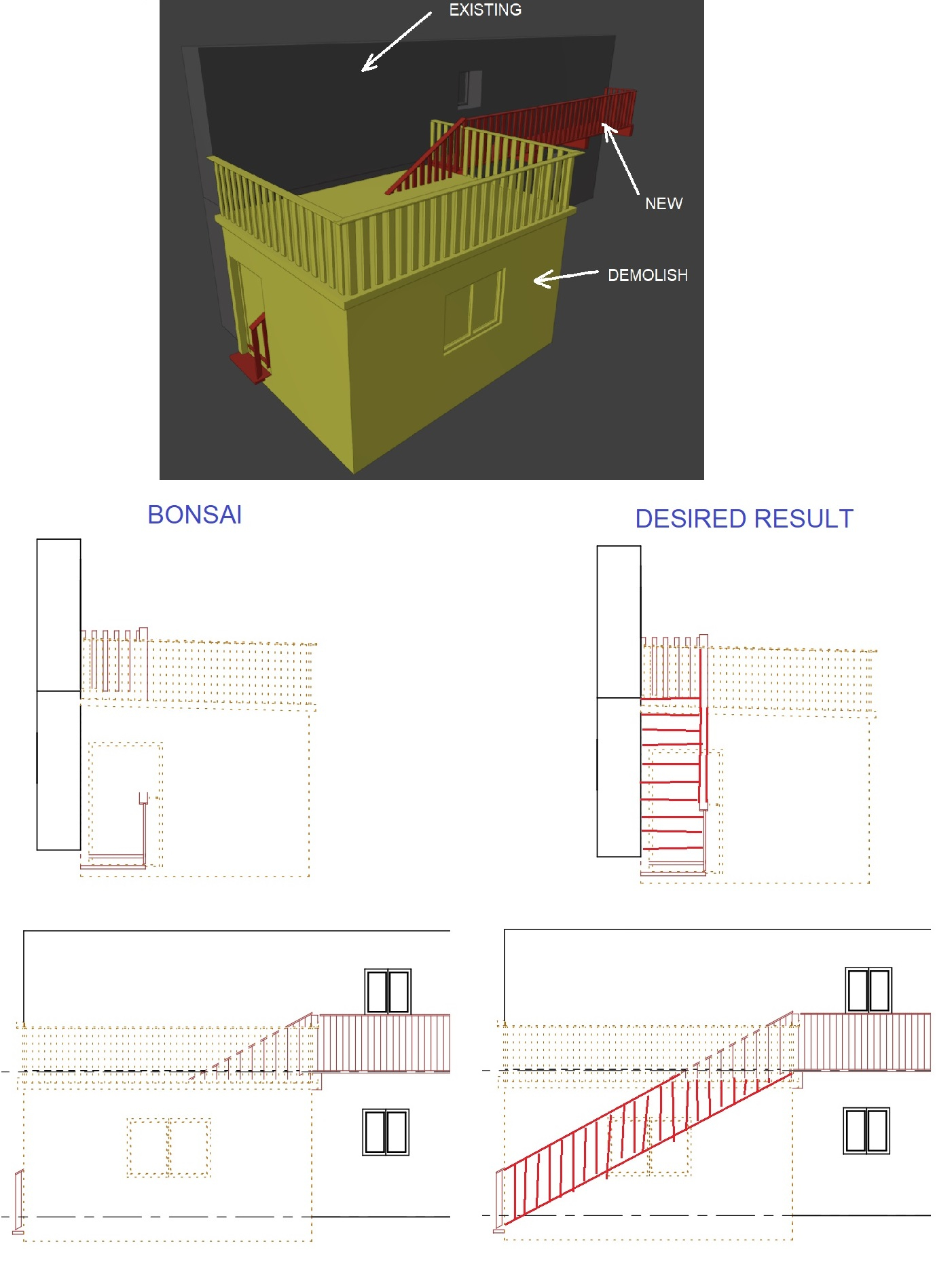
It is a renovation project where a building is being demolished and an external staircase is being built in its place.
I classified the elements involved with EPset_Status and then changed their CSS style with the help I found here in the forum.
Unfortunately, the visibility of the objects represented in the drawings is not as desired. I'm afraid I can't continue without help... so I would be very happy if someone more experienced could give me some advice on how to proceed.
Many thanks


Comments
Perhaps combining 2 different svgs could help? One with yellow and one with red, putting the yellow on the bottom...
I think the problem here in italy is that we have a kind of peculiar way of representing differences with yellow and red. Expecially because it's not bound to demolished and new elements, but on geometric differences between drawings. (A wall demolished and reconstructed on the same position is not usually marked as yellow and red)... Interesting discussion by the way :)
theoryshaw is the master of getting drawings into shape, so maybe he has some ideas. From what I understand, there is no single drawing solution. This is because the demolish geometry occludes the new geometry, and the lineart system does not create svg for the new geometry. As carlopav said, two drawings, then combine them on a sheet.
Draw your existing and new on the bottom drawing. Draw the demolish by itself on a top drawing. Edit the drawing and set the css fill to none so you just have linework that you can see through. Then create the sheet, and the demolish linework should overlay in the manner you want. Or you could do it the other way round if you want the new linework to be above the demolish linework.
Addendum Edit: You could actually specify a custom default.css in the EPset_Drawing of the Camera. In that second css file you can set the fill to none for the objects. This way you don't have to keep re-editing the svg drawings by hand.
Yes, i would do the (2) superimposed drawing approach.
Great,
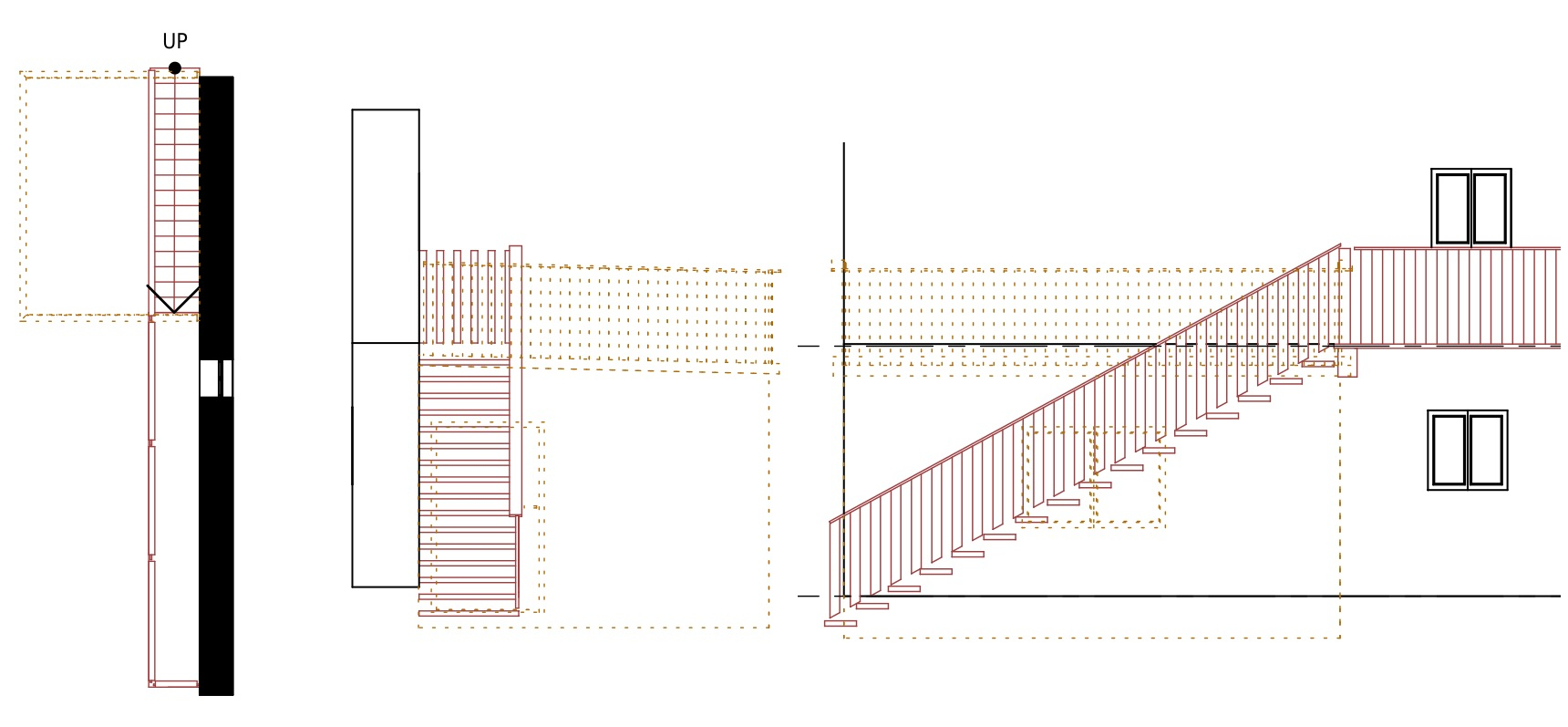
thanks to everyone for your help. I achieved my goal using the superimposed drawing approach.
The disadvantage is that the number of drawings to be handled triples (yellow/red/yellow+red).
What would be the best way to handle a manually created SVG drawing (yellow+red) in the system so that it can ultimately be managed like all other drawings in Bonsai (number, title, insertion into a sheet, etc.)?
There was some talk here, of a possible solution...
https://community.osarch.org/discussion/comment/24891/#Comment_24891
See the attached for a possible solution with just (2) drawings.
Thank you @theoryshaw for your help,
I came to the same workflow. Here my steps for the records:
1. create the drawing A (existing and new) with the necessary filters and css-styling
2. name the drawing A with the final name of the end-combined drawing (A+B)
3. create the drawing B (only demo) copying the drawing A with necessary filters and css-styling
4. create a sheet and insert both drawings A and B
5. in the sheet dialog cancel the identification number for drawing B and reanme it eventually for drawing A
6. now open the layout for the sheet and move drawing B over drawing A using the circle of the view title as reference point
7. cancel the view title for drawing B
it would be nice if it were possible to override not only the identification number but also the name in the sheet dialog for the drawings, then you could save yourself the trouble of deleting the view title by leaving it empty.
Here a sligtly revised workflow to optimise drawing number handling:
1. create the drawing A (existing and new) with the necessary filters and css-styling
2. name the drawing A with the final name of the end-combined drawing (A+B)
3. create the drawing B (only demo) copying the drawing A with necessary filters and css-styling
3a. delete all Anootations and set Annotation=false for drawing B
4. create a sheet and insert both drawings A and B
5. in the sheet dialog rename eventually the drawing number for drawing A and set the same number to drawing B
6. now open the layout for the sheet and move drawing B over drawing A using the circle of the view title as reference point
7. cancel the view title for drawing B
8. check the drawings for doubled section annotations and move them on top of each other if necessary