

How to edit IfcRectangleProfileDef beam dimensions in Bonsai BIM v0.8.4?

Hello,
I'm a beginner using Bonsai BIM v0.8.4 and I managed to create an IfcBeam with an IfcRectangleProfileDef profile (via Type Manager → New Profile).
My question is: how do I correctly edit the dimensions (width and height) of the rectangular profile after it has been assigned to the beam?
When I try to edit from the N panel in the viewport, the fields are greyed out and cannot be edited.
What is the correct workflow to change the profile dimensions in v0.8.4?
Thank you!
Comments
Hello, the correct workflow would be: in the right panel, select Geometry and Materials, then look for Profiles. Select the profile and click the pencil icon. Below the box, the editing options will appear. Don’t forget to click the check mark at the end to save your changes. Remember, the pencil opens the editing options—in my case, it’s the radius—and to save that change, you need to click the check mark.
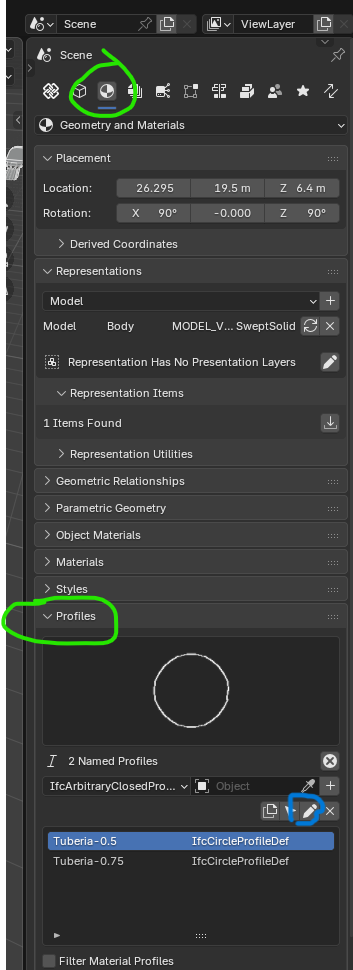
Select the profile, click the pencil icon to edit the profile.
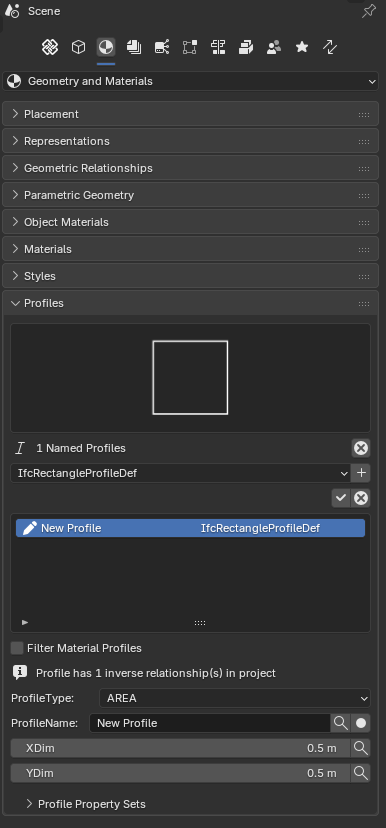
@Darius_Hisem
what proposed by above posts works well
If interested, my workflow is to check the design (intended of from different source) and prepare a table with entity type information, like naming, geometry (where constant), profile, style and so on before modeling begins, which roughly means:
does it sound pedantic? with time you realize how important the preliminary stage is, it saves you a lot of time after, if you can don't rush into modeling right away, "think BIM" first.
Clearly once you tested your own stuff all of the above becomes a Template, that you can quickly import to your next models
I'd like to know about others' workflow, a subject rarely spoken about
cheers