

Animation showing model changes over the course of a project

If you ever want to show your client how many changes they made throughout the duration of project, and how awesome you are for accommodating them, you can use the following scripts. :)
I used them to make the following video for those Bonsai tutorials.
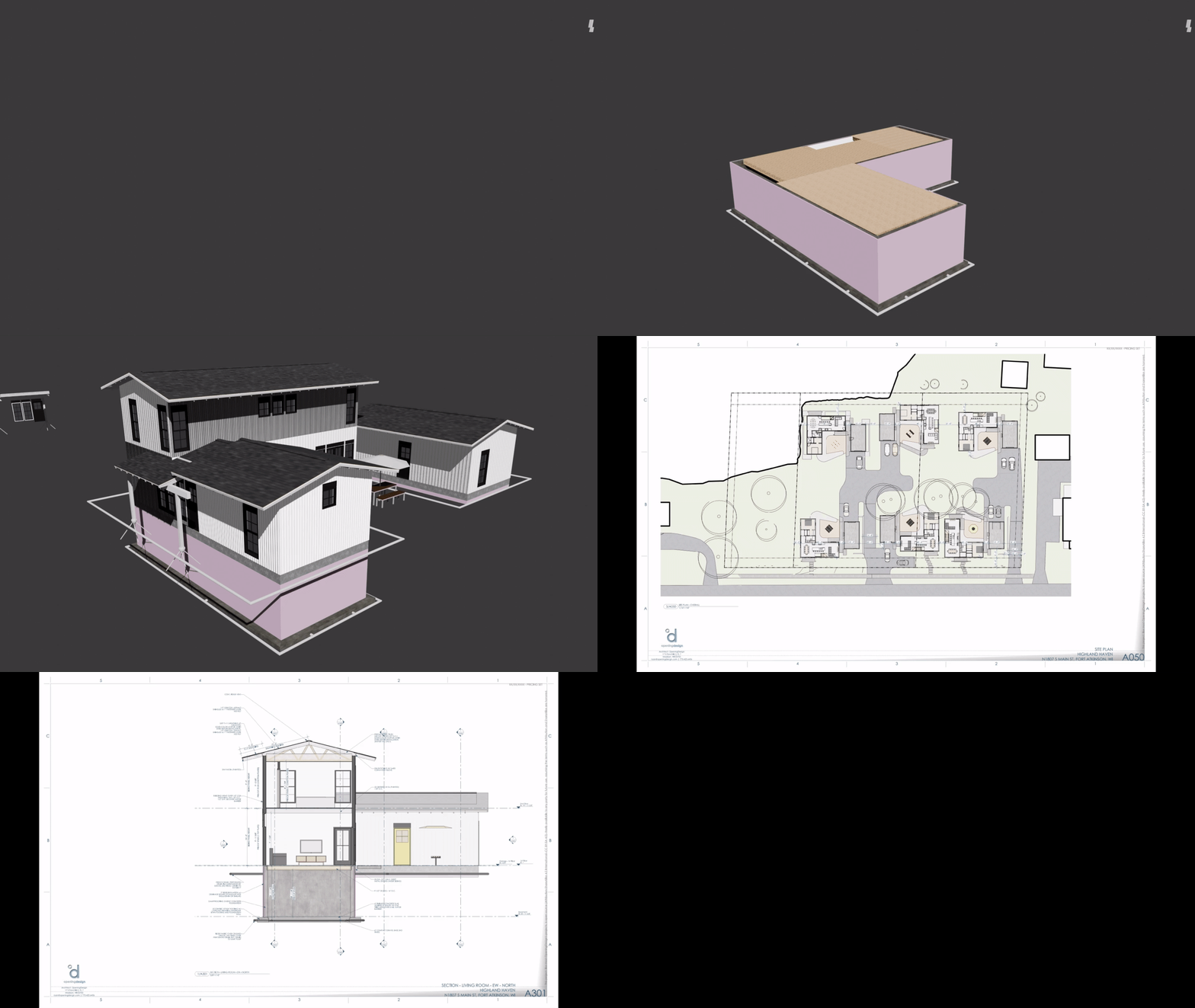
Extract all Git versions of your IFC model
This script pulls every version of your.ifcfile tracked in Git:
all_git_versions_of_a_file.pyConvert each IFC version to a Blender file
This one opens each IFC file in a folder and saves out a corresponding.blend:
launcher.pyLink them into a master file and animate
This script links all the.blendfiles into a single master file, assigning a set number of frames per version:
script2.pyAnd viola, dazzle your clients and send your invoice with confidence. ;)







 and 7 others.
Comments
Cool! Couple of questions:
1. I assume I need to buy a new hard drive or two for all those files? ;-)
2. I couldn't find the import_single_ifc.py script mentioned in launcher.py, or is that secret source for paying customers?
3. I'm guessing there's no way to control what is included/excluded? Either with EPSet_Status, or Groups?
Nice, though it shows that bonsai needs a method of aligning drawings/grids on multiple sheets
There is a way...
Slavishly copy your camera properties one by one, so the produced drawings are identically sized & framed, then laboriously open each layout in Inkscape and manually copy the exact page coordinates for each group so they match. 😉
welcome to AEC. :) you should have saw the project folders with Revit files. :)
whoops, I accidently removed it in this commit, I reverted it back here
I'm sure there's a way.
...
All these scripts were done with AI help, of course. :)
Touché!
Hmmm. Now I've looked at import_single_ifc.py, I see it would be very easy to expand the ability to show / hide what you want. I might get around to fiddling with that at some point, and obviously if I do make any enhancements, I'll pass them along. I've created a few chonky arg parsers with lots of options before. I'm thinking something along the lines of:
Just looking at script2.py, and noticed
frames_per_stage = 5. With five frames per image, that means you are rendering each git status 5 times.It might be a bit more hassle than it is worth to save 4 frames per status of rendering, but Blender contains a full video editor. You could render each frame once, drop your image sequence into the video editor as a video strip, then use the Speed effect strip, and stretch your video strip out to slow it down as little or as much as you want. If you want to get really artsy you can add a Ken Burns effect, and cross fade between image sequences of different viewpoints, fade to grey. Pretty much anything you want.