

How to add a IfcVoidingFeature (Add Void)

Hello,
When using the "Add Void" tool, if I change the class in the menu below:
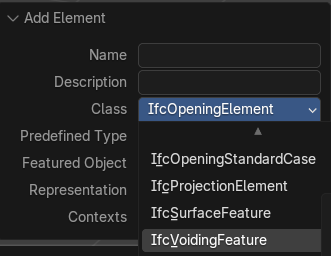
The menu updates to that:
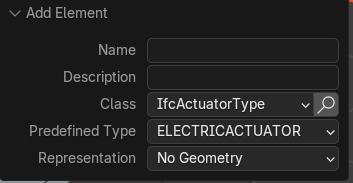
which looks like a bug
Then, I cannot change the class of the IfcOpeningElement to IfcVoidingFeature:

Any workaround?
Thanks
Comments
@RaphaëlVouilloz
please try
Method 1
OR..
I personally find the first method useful when I want to use an existing object to make a void
maybe there are other ways?
cheers
Thanks @steverugi !
I was not aware of method 1, which works smoothly
Noob question, how do I resize the 3rd dimension? If I'm understanding correctly these are an extruded polygon? The above shows me how to adjust the size of the polygon (X & Z in the 2nd vid), how do I adjust the extruded distance in the Y direction?
like this: https://community.osarch.org/uploads/editor/ub/hmws550b31ax.mp4
Is there a way to associate/join a single opening "IfcOpeningElement" to a window or door?
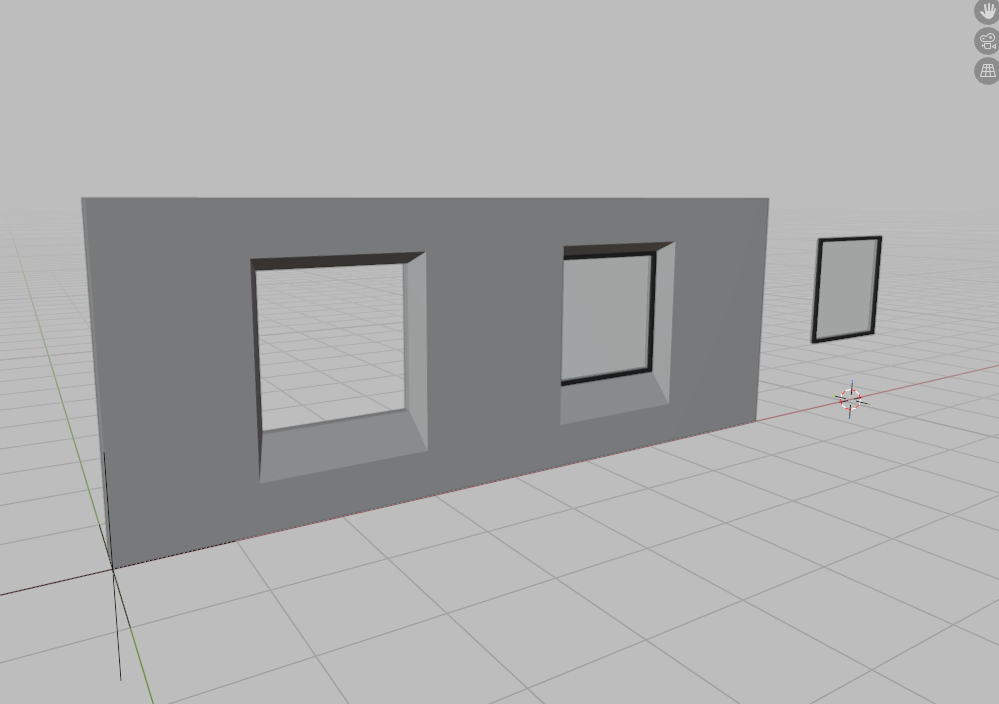
I usually create the single IfcOpeningElement on the wall, and then add or move the single window or door.
I don't know if there's a way to associate/join IfcOpeningElement + IfcWindowType so that when I insert the window into a wall, the opening and the window are created simultaneously, just like when using parametric windows/doors.
Thanks!
@theoryshaw
Thank you, I was searching everywhere in wall tool, I didn't know I needed to switch to multi object tool and IFC Item Mode.
I've been wondering how to create tapered openings too like those in @FranSeone's screenshot, that's explained now as well.
Cheers
julian
I'm not sure how to do it after the fact, but I usually start with creating a tessellated window in the type launcher, and then it has the associated opening.
If you already created a window without the opening and later want to add one, I do the the following workflow. That is, create a new window via the launcher and then 'join' the geometry of the window you'd like to have an opening.
@theoryshaw Thanks!
It is not necessary to start from a parametric window.
You can start by modeling a .blend window, and the moment you assign the IfcWindowType, an IfcOpeningElement associated with the type is automatically created.
The problem is that the created Opening is generated from a "Custom Extruded Solid", which means we cannot generate a unique Opening like a conical trunk or similar.
The solution would be to be able to choose, to generate that opening, between a "Custom Tessellation" or a "Tessellation from Object".
I suppose this isn't yet possible in Bonsai.
A Custom Extruded Solid isn't necessary "box-shaped". You can can achieve more advanced shapes by editing the profile, adding volumes, or cutting them by half spaces:
A Custom Extruded Solid isn't necessary "box-shaped". You can can achieve advanced shapes by editing the profile, adding volumes, or cutting them by half spaces.
I wasn't aware of this option for modeling the Opening with IfcHalfSpaceSolid.
Great, it's another valid method until we have the option to select: "Custom Tessellation" or a "Tessellation from Object".
Thanks!