

IfcReferenceImage

Do you know if there is a way to see the IfcReferenceImage in Solid View? I can only see it in material or rendered mode
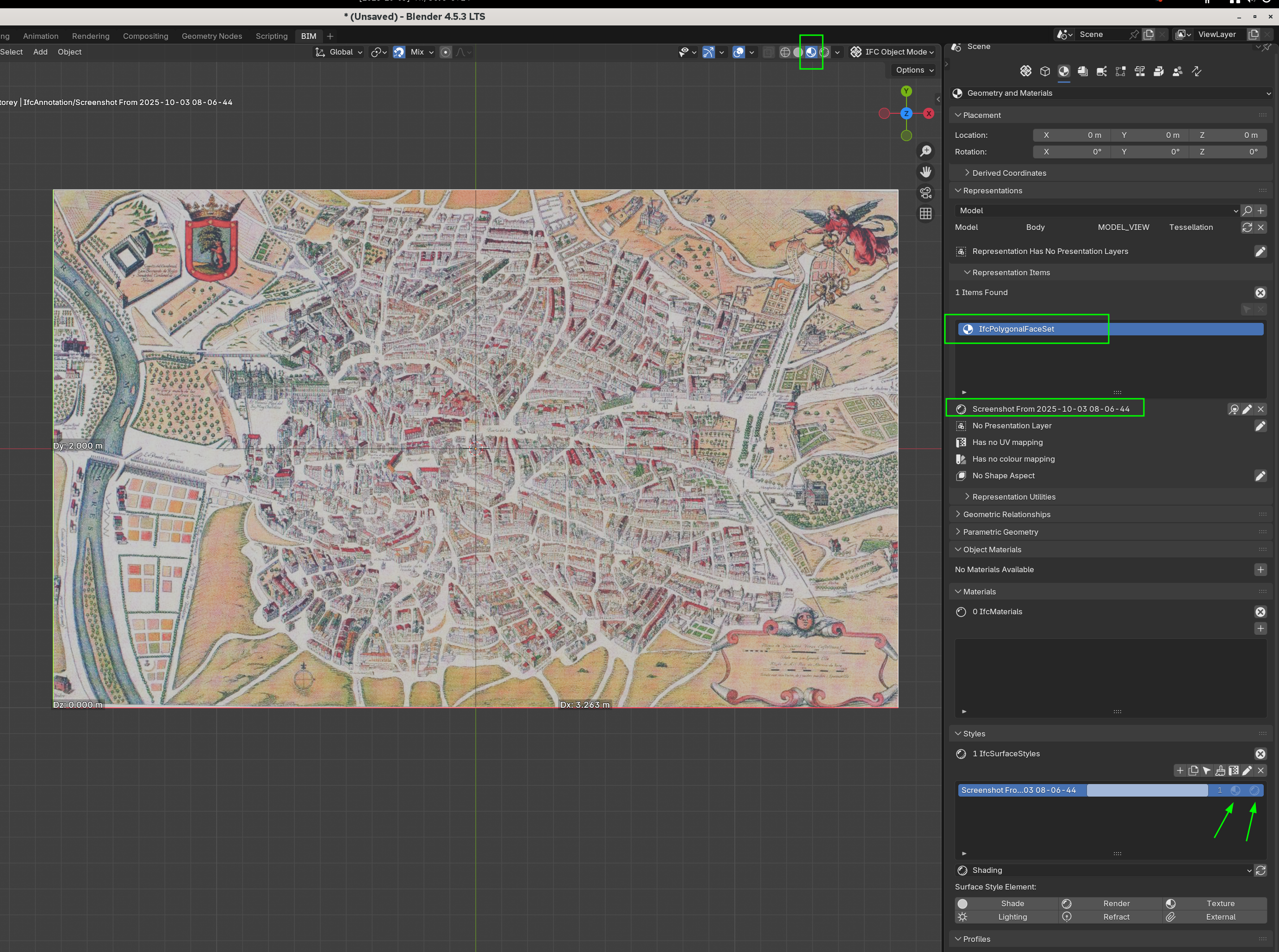
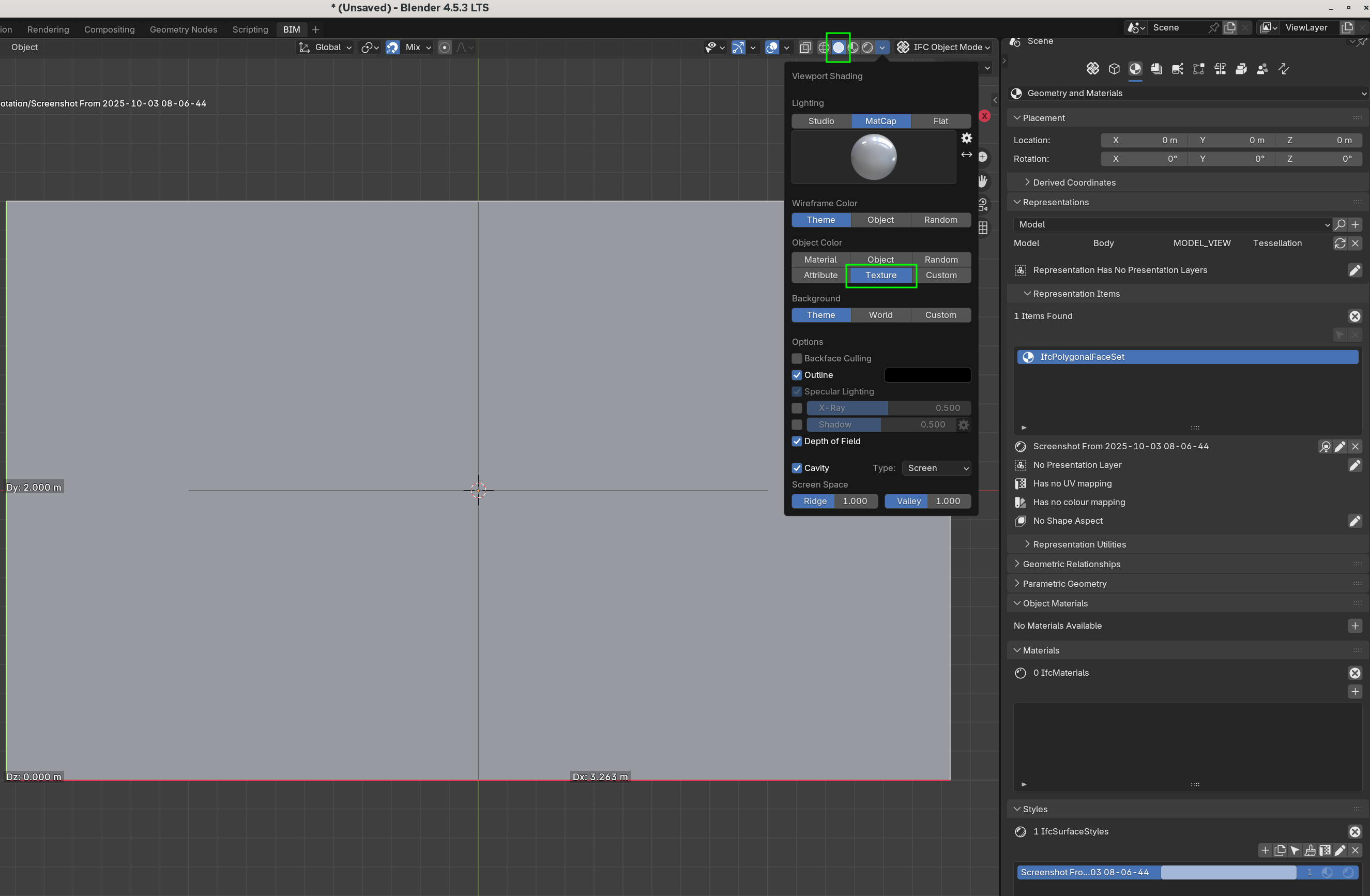
If I try to select "Texture" in Solid mode I do not get the Image:
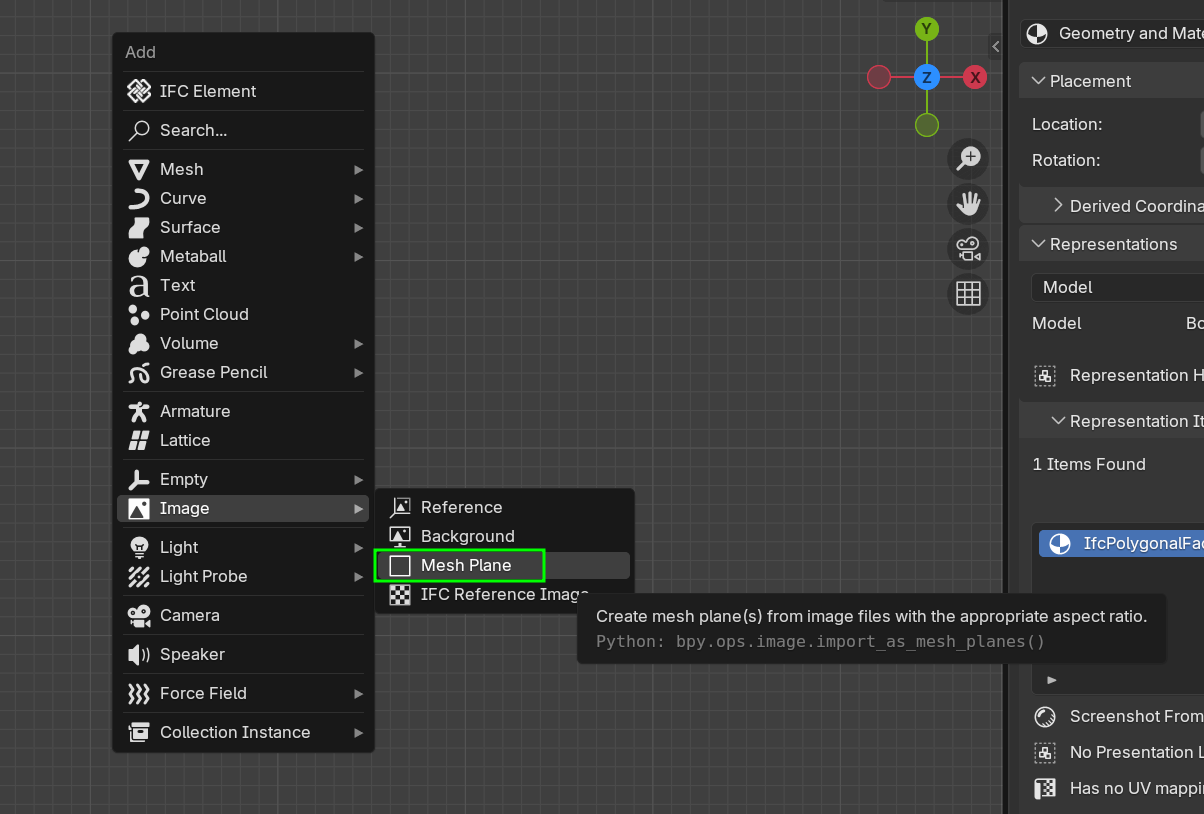
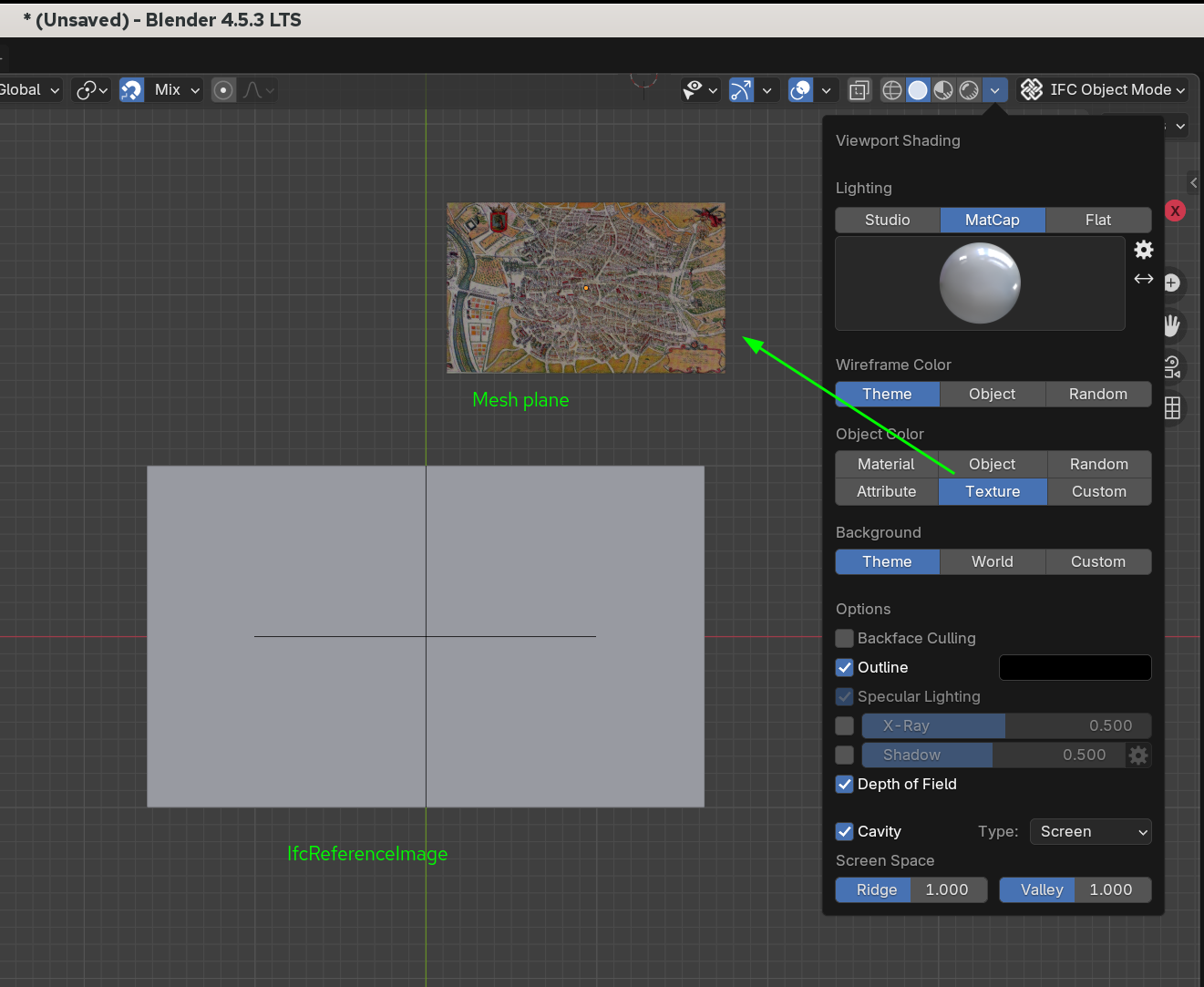
If instead I add a mesh plane, the image is available if the solid mode is with Texture:
Cheers!

Comments
a
just unwrap the Reference image, but this is only temporary, when you reopen your project, the texture image doesn't appear again, but it is quite simple to do.
@busterdive how do you "unwrap" the ifcReferneceImage :)
Thanks!
select your IfcReferenceImage, press ctrl + tab, select Edit mode, select All Face or just press A, then press U twice, then ctrl + tab again back to Object Mode
@busterdive excellent! Thanks!
Glad to help
@busterdive Based on your help to unwrap the image I have submitted PR 7207. That does this when the image is created.
Here in action:
Cheers!
Here an improvement to the PR. I have added an "Image Scaling Tool" in the "Explore Tool" that allows the user to uses the polyline SINGLE measure tool to fetch two points from the image and provide the real distance so the image is scaled with that information.
Cheers!
Thank you very much
Just a side note: for me uu twice didn't work. I had to choose: Cube Projection and set : Scale to Bounds
Probably because my images are vertical
@RaphaëlVouilloz It would be great if you could test the PR above to get the UV unwrapping automatically and also get easily the proper scaling to see if it works properly for your image and provide feedback if it does not.
You can just install the "bleeding edge" addon bonsaiPR at https://github.com/falken10vdl/bonsaiPR/releases/tag/v0.8.4-alpha251028 as it has the PR merged.
See https://community.osarch.org/discussion/comment/26842#Comment_26842 for the rationale behind.
Cheers!
Oh yes excuse me, that works indeed perfectly. Thanks for the dev
@falken10vdl
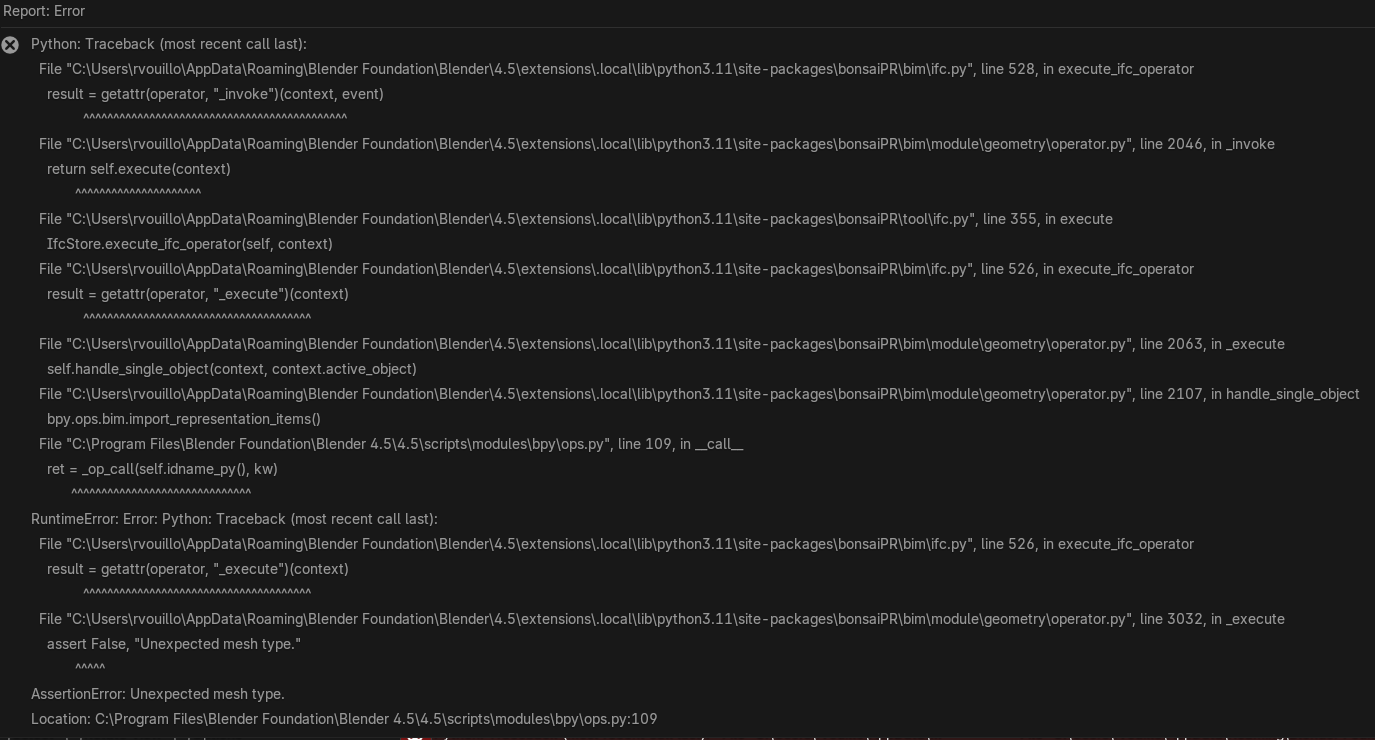
Just a feedback:
-When I add a new IFC image, and enter in edit mode, I get this bug:
-> I have to save the IFC, then open it again and now I can edit the image
-If I change the size in default solid viewport (my workflow is to move the vertices in edit mod), validate going back to object mode, then click on texture in the solid viewport settings, texture appears on every IFC image but not on the one I have edited, which remains grey. Again, I just save and reopen the IFC then it works.
-Side note: it would be wonderful to be able to set the size in the import menu
Thanks!
@RaphaëlVouilloz Thanks for the feedback! Let me reproduce it and fix this.
To set the size in import how do you think it makes most sense? Adding a couple of fields for X and Y real lengths? Just one diagonal length field to preseve relation aspect?
Cheers!
Thanks a lot @falken10vdl !
Yes my use case is to import orthophotos made from digital surveys, setting X and Y real lengths would be perfect
@RaphaëlVouilloz I think now the error to edit before saving is solved and I have added a pop up just after the image file is selected that provides the X and Y dimensions (default to 1 unit in the longest dimension of the picture).
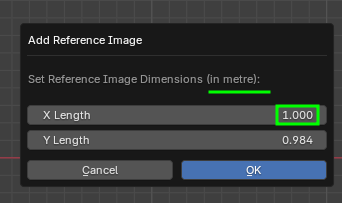
You can fetch it in the latest bonsaiPR: https://github.com/falken10vdl/bonsaiPR/releases/tag/v0.8.4-alpha251103
Cheers!
Really smooth! Thanks a lot!