I did not really create a butt joint there. I just extended one of the walls to certain point. There is no joint between these two walls.
I always used "extend" to join Walls. So this might by why my butted T-Connection did not stick when I move the target Wall. Have to look into that again.
EDIT :
It works already with "Extend". When moving the Wall and updating, the butted T joint stays.
(At least when I select both Walls before I extend, maybe last time I extended to 3D Cursor only ?))
Bonsai provides great tools for exploring an IFC project. I recorded a video covering these features in Bonsai. This may be useful for two types of viewers:
Bonsai beginners
people who would like to use Bonsia as an IFC viewer
Visualizing your IFC model in its geographic context is just one click away in IFClite. The video bellow shows how to achieve that.
IFClite is a free open source web application created by Louis Trümpler. It enables viewing and editing of IFC files. One of its features is one click access to Cesium 3D world context of your IFC project. Of course this only works when your project is correctly georeferenced.
I am experiencing a bit of an Orthogonal Height anomaly with terrain placement (the terrain is bit off). Not sue if it is related to the vertical CRS i am using or whether there is another reason.
Open CAD Studio is a new free open source program, which offers native DWG authoring. It is very straightforward to use it, as it requires no login, no email, no password - just download it, install it and run it. It is available for Windows, Mac, and Linux.
This tutorial shows how to create a simple metallic plate 2D drawing using Open CAD Studio. The tutorial covers the basic functionality of Open CAD Studio:
Creation of basic geometry like lines, arcs, and rectangles
Creation of dimensions
Layer setup and management
Usage of basic drafting tools like Move, Copy, Mirror, Fillet and others
Usage of advanced drafting tools like snapping, polar tracking, or obejct snap tracking
Creation of a sheet (Layout)
Setup of the sheet including the viewport and scale
Open CAD Studio has a Web version, which can serve as a free online DWG and DXF file viewer. It offers these features:
✅ DWG and DXF file support up to version DWG2018
✅ 2D, 3D model space viewing and layout support
✅ Measuring tools available
✅ No license, no key, no login, just open it in a browser and view your DWG files
✅ No user data is sent to cloud - it all runs locally on your machine
The application is still in heavy development, there might still be issues opening some DWG files. If you encounter those, you can support development of the tool by submitting problematic files to the development team.


Comments
BTW ....
I always used "extend" to join Walls. So this might by why my butted T-Connection did not stick when I move the target Wall. Have to look into that again.
EDIT :
It works already with "Extend". When moving the Wall and updating, the butted T joint stays.
(At least when I select both Walls before I extend, maybe last time I extended to 3D Cursor only ?))
This is what I did in the tutorial. Extend to the 3D Cursor only, not to the wall.
I am not sure what went wrong last time. Today everything works :)
Currently I am quite flashed how good all these Bonsai Modeling Tools work already.
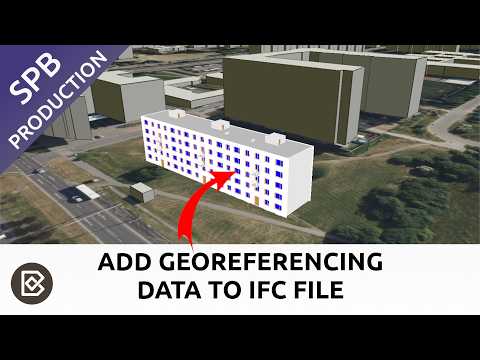
This video explains how to use Bonsai BIM to add georeferencing data to an IFC project.
Bonsai provides great tools for exploring an IFC project. I recorded a video covering these features in Bonsai. This may be useful for two types of viewers:
A new video tutorial shows how to setup and manage IFC project units using Bonsai. Viewers will learn how to:
Use the ConvertLengthUnit patch to convert project to a different unit (proceed with caution)
Visualizing your IFC model in its geographic context is just one click away in IFClite. The video bellow shows how to achieve that.
IFClite is a free open source web application created by Louis Trümpler. It enables viewing and editing of IFC files. One of its features is one click access to Cesium 3D world context of your IFC project. Of course this only works when your project is correctly georeferenced.
I am experiencing a bit of an Orthogonal Height anomaly with terrain placement (the terrain is bit off). Not sue if it is related to the vertical CRS i am using or whether there is another reason.
Check out IFClite here: https://www.ifclite.com/
Absolutely helpful. Great Link.
Open CAD Studio is a new free open source program, which offers native DWG authoring. It is very straightforward to use it, as it requires no login, no email, no password - just download it, install it and run it. It is available for Windows, Mac, and Linux.
This tutorial shows how to create a simple metallic plate 2D drawing using Open CAD Studio. The tutorial covers the basic functionality of Open CAD Studio:
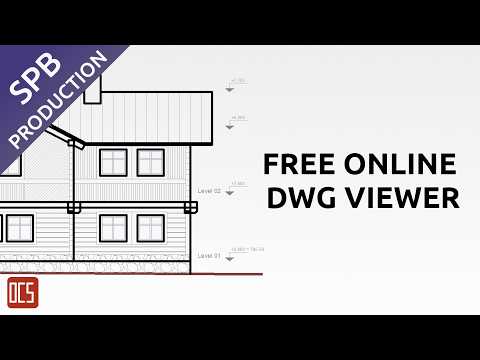
Open CAD Studio has a Web version, which can serve as a free online DWG and DXF file viewer. It offers these features:
✅ DWG and DXF file support up to version DWG2018
✅ 2D, 3D model space viewing and layout support
✅ Measuring tools available
✅ No license, no key, no login, just open it in a browser and view your DWG files
✅ No user data is sent to cloud - it all runs locally on your machine
The application is still in heavy development, there might still be issues opening some DWG files. If you encounter those, you can support development of the tool by submitting problematic files to the development team.
You can access Open CAD Studio Web from its product page: https://open-aec.com/open-cad-studio/
Here is a short video with demonstration of Open CAD Studio Web:
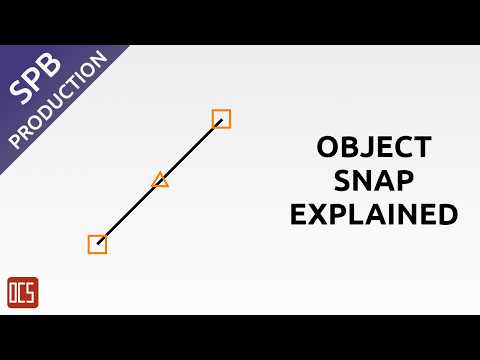
This video demonstrates all snapping targets of the Object Snap tool in Open CAD Studio:
This video shows how easy it is to install and run Open CAD Studio: