

Need for a angled wall merge function

Evening. I would like to describe the need for slanted wall functionality in this post. I will describe what i have done, and hopefully it points out the need for this functionality.
I am trying to add a slanted wall between two known lengths by two separate walls, which i know the lengths. However, there are no quick tools for this.
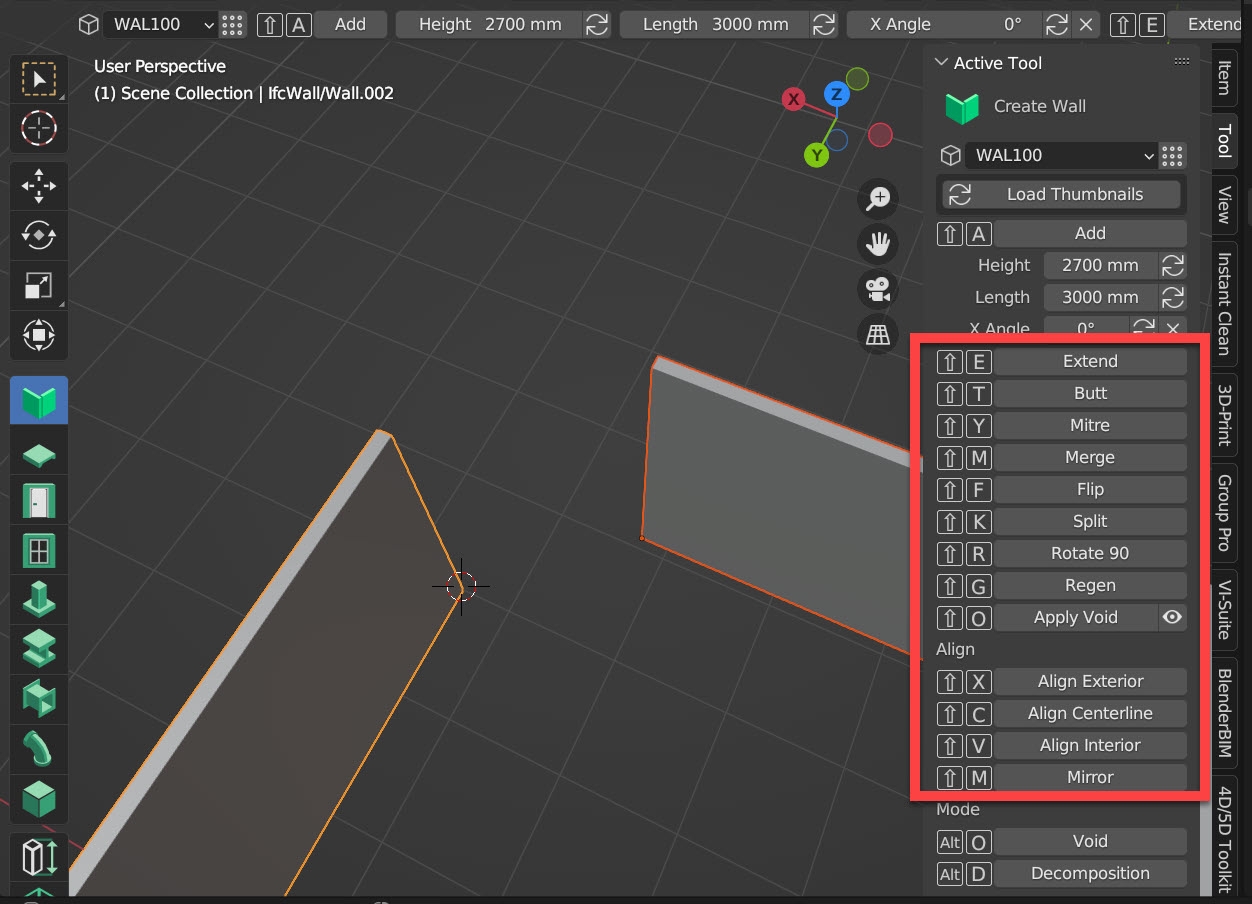
I therefore added a new wall which i am to manipulate with snapping features of line (or vertex point).
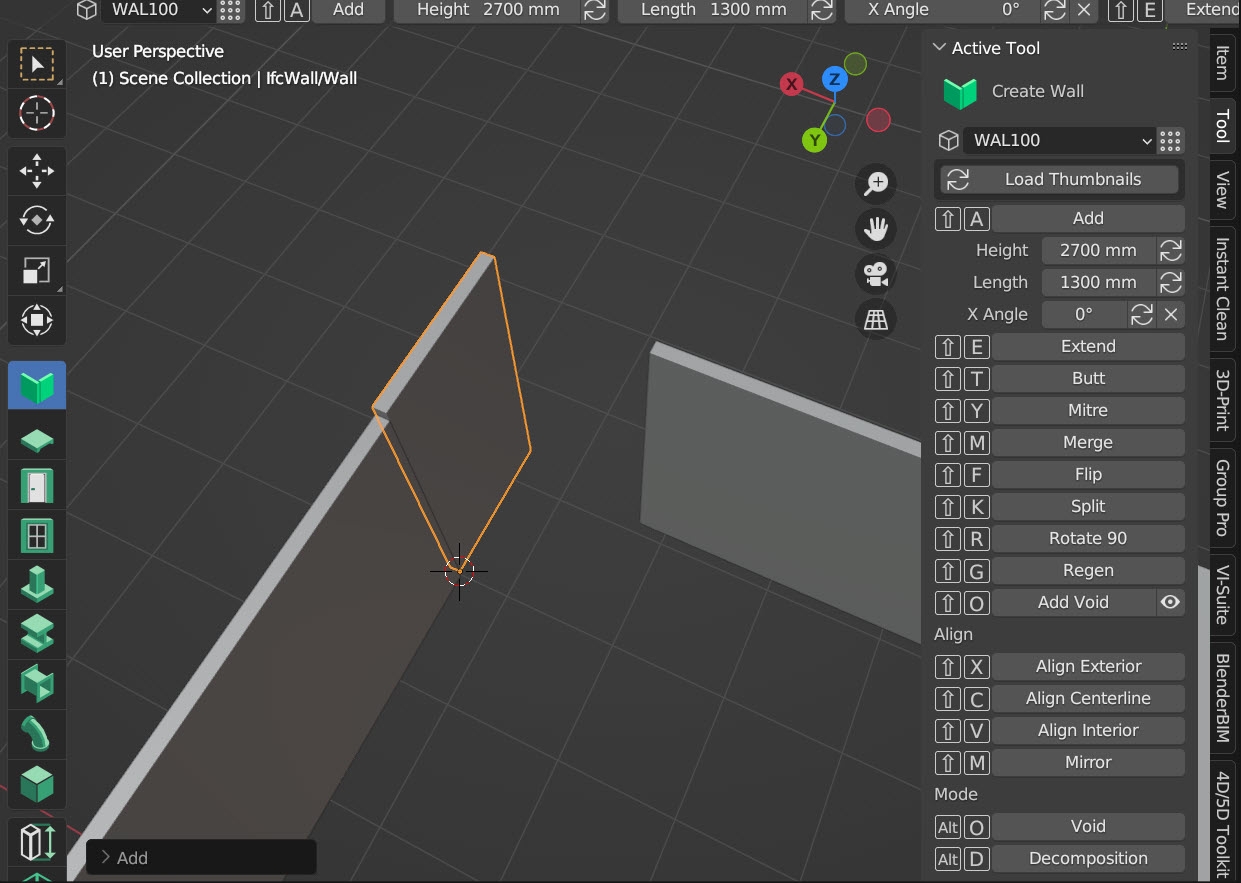
When i manually do adjust a wall, it will look somewhat like this:
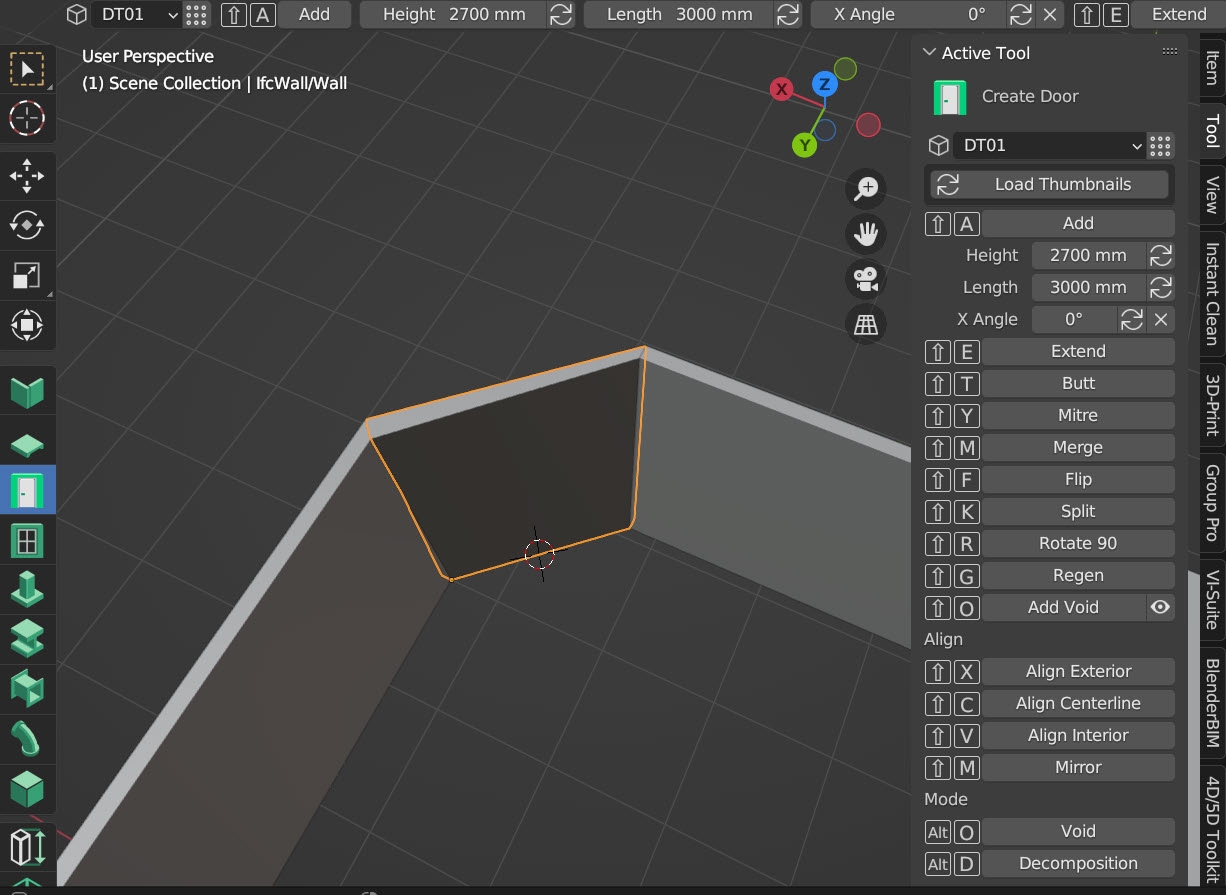
When now assigning a door, the entire geometry of the wall is forced to its default starting position.
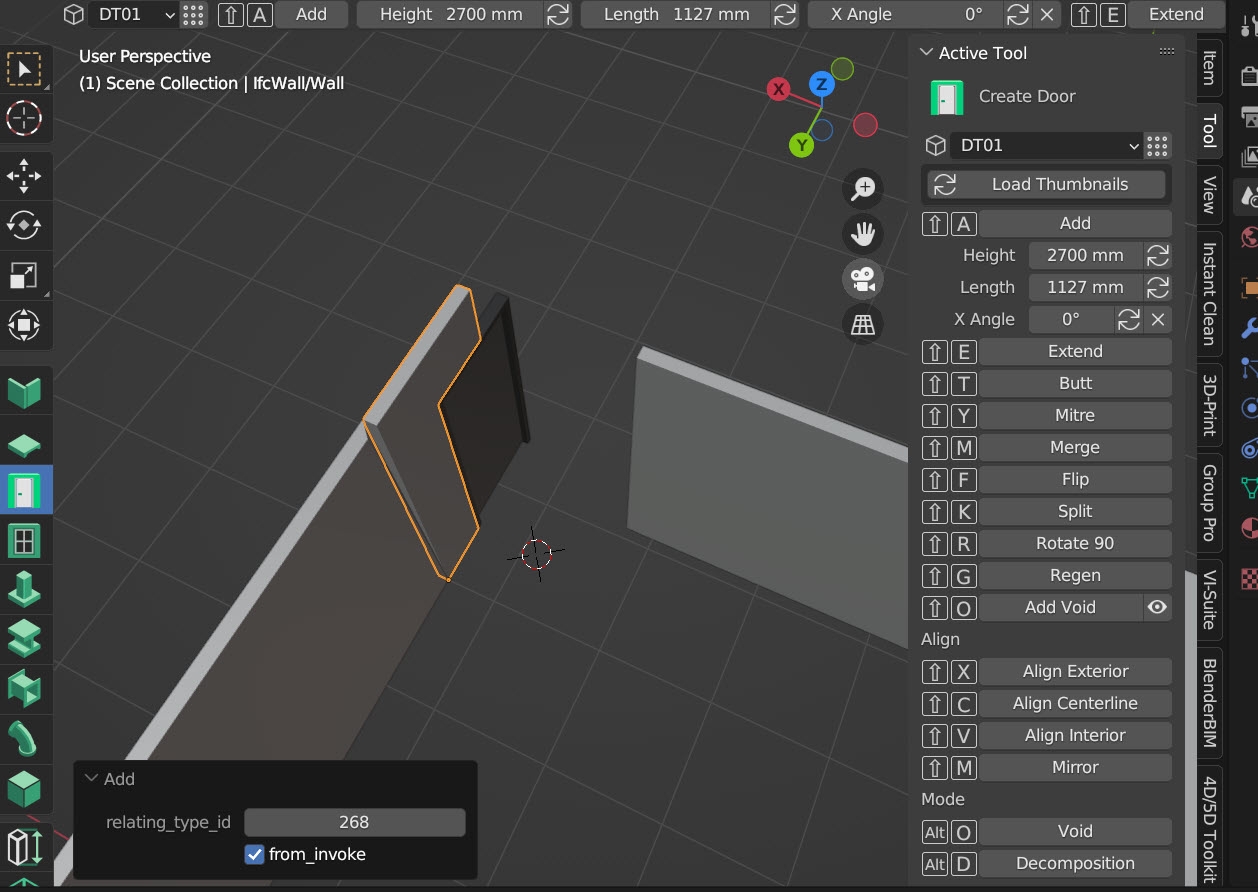
Upon further investigation, if i rather adjust the wall with the blender rotate function, and thus rotate it a bit:
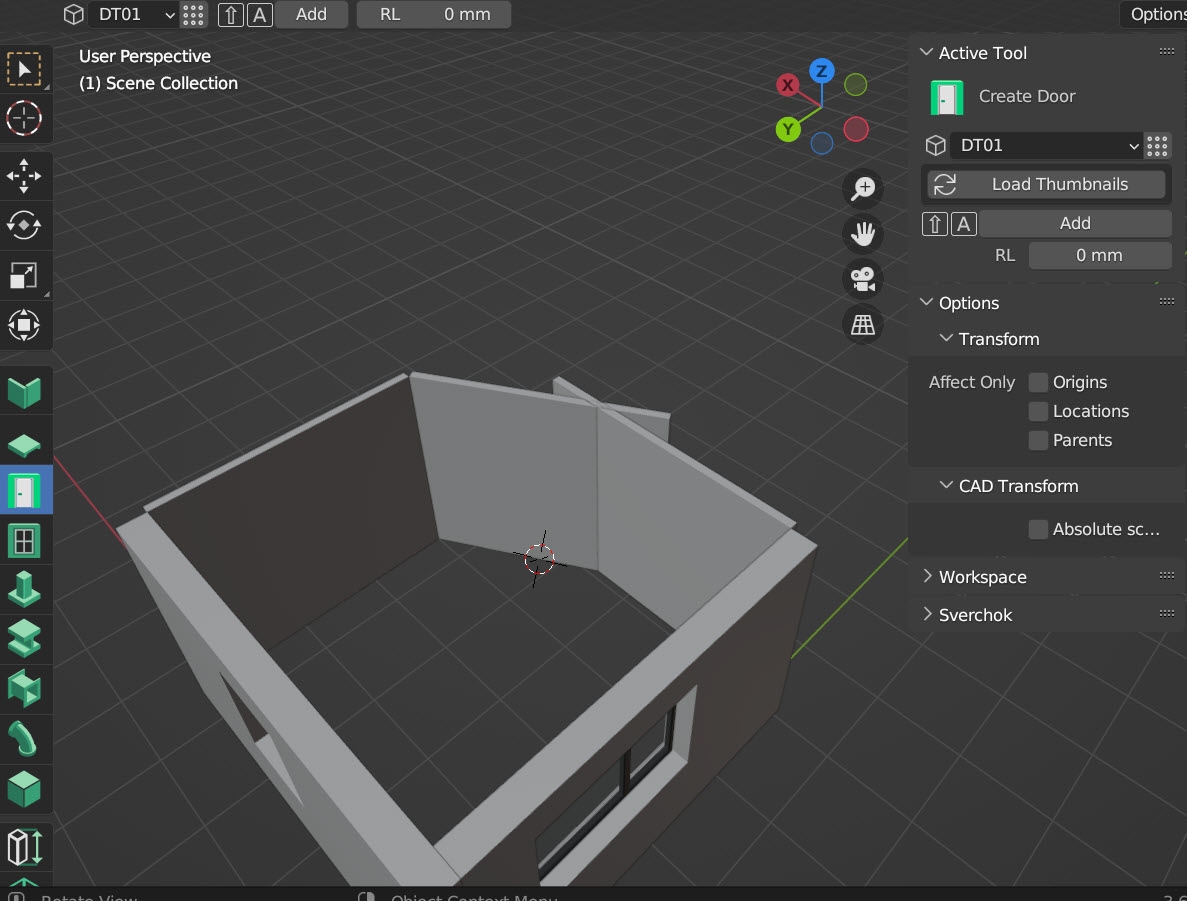
And now add a door, it is successful and does not result in the same error as shown previously.
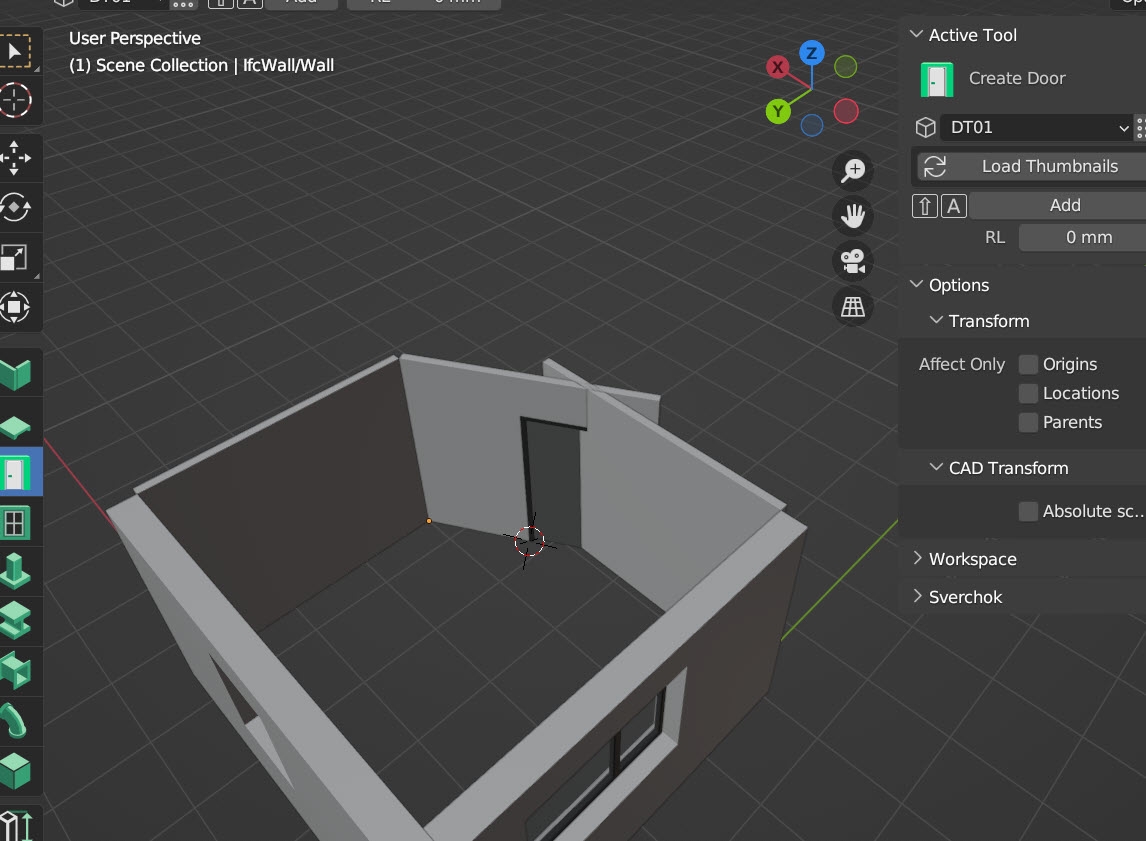
I would like to know if it could be a potential feature to add a slanted wall between two "master walls". As i can see, it is an irritational editing needed to make the slated wall with the rotate function work. To do this, i would recon i know the slanted walls exact lenght beforehand to easly snap it, however if i want a Mitre cut on the edge, i cannot do this as it then mean i have to adjust the edges with blenders edit functionality.
Comments
Hi.
First of all, I don't think "slanted" is the correct term here? As far as I can tell fro the screenshots, your walls are vertical, slanted is used for walls which are sloped (like a roof).
If I'm correct, rotating the last wall is the correct way to go, and the only question is, how to snap easily. You can either get the cad transform addon, or Blender 4 - both offer the option to rotate with basepoint.
Hi @Ole_Marius_Svendsen
when you add the diagonal wall you can do as follows (at least it works for me):
1. you have the wall set to close
2. place the 3D cursor at the corner, make sure you have toggled snap at
Vertexand theRotateat the bottom of the panel , to facilitate the snapping you can use theShift+RMBor mouse right clickRyou should be able to target the opposite outer wall corner (yellow circle)Shift+Eto close the rotated wall to destinationfinally you can add the door :D
in case you already knew the procedure I hope it could be useful to others like me struggling along the Blender steep learning curve
Hi Jan, apologize, i do belive you are correct. i Should have written Angled wall. I dont belive i can edit the headliner title as i am past the 1 hour limit.
Thank you Steve, this did indeed help and work! :)