

[BlenderBIM] - Beginner Tutorial - Multistorey building in 40mins

This thread is to discuss this video tutorial:
Sorry the vid is a bit long I try to keep them short but this one was not getting any shorter hahah
Have any Q's or suggestions for a better workflow? Put them here!
Resources found here:
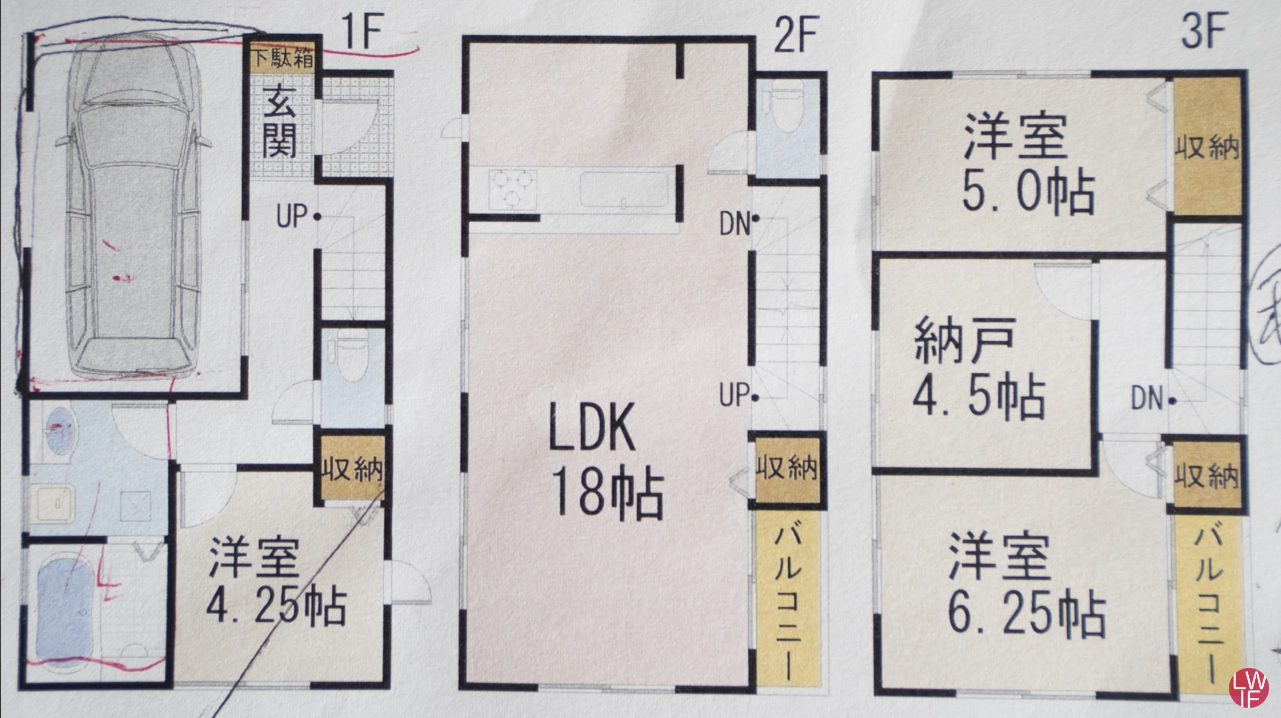
- Plan to trace
- 800 door
- AU IFC4 Library
- Completed IFC file to play around with









 and 9 others.
Comments
This is an incredible video. I learned a lot and even better you helped discover a bug during the tutorial which is now fixed: https://github.com/IfcOpenShell/IfcOpenShell/commit/2c4a0669ed0ee94a85c503c8aab8eafb2971fc32
I was looking at the clip on how you scale the image, never thought of that.
But like anything in Blender, everything can be done in several ways.
I also saw some other clip, that someone used the 3D cursor to set as origin on an image. And then scaled it with a reference object.
I can't find the clip anymore, which is really frustrating me because I forgot on how to do it :-(.
What would be the fastest way of scaling an image in Blender?
Found it, just set the 3D Cursor, select the image.
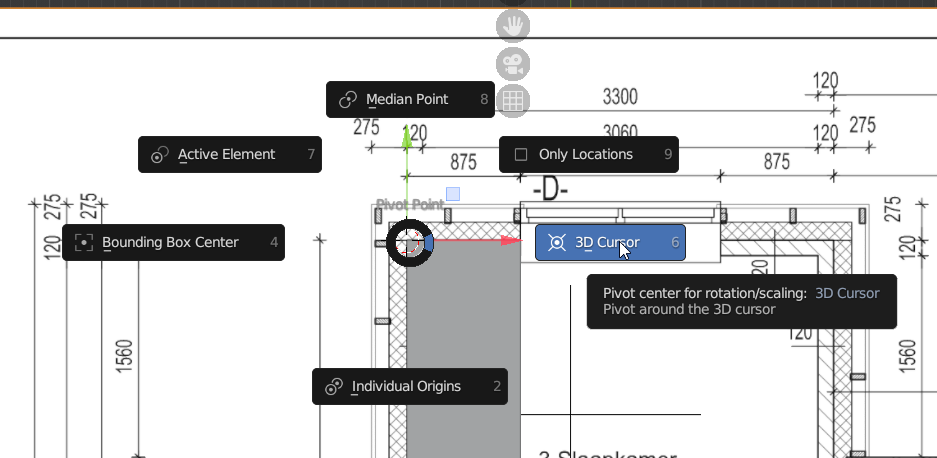
Press the
.key. Will create a pivot point, now you can scale from this pointJust found this 2 second explainer in a youtube tutorial of 19 minutes ?
Hi,
I'm having trouble with creating a story as per the vid @ 19:27 - ctrd+d doesn't create a new empty. I have the screen layout exactly as per the vid, where the text top right of the screen changes from IfcBuildingStorey/Ground Floor to IfcBuildingStorey/Ground Floor.001 nothing happens for me. ctrl+d works perfectly for other building elements and annotations right through the Modelling vid.
I can create a new story by going to Scene -> Project Overview -> Spatial -> Spatial Decomposition but doing it that way I do not get a visible empty marker. It may not matter but it's disconcerting when things differ, I don't know if it's safe for me to ignore it or if its a symptom of something not right in my project that will bite me later.
Thanks for any help or reassurance you can provide
Regards
Julian
Linux Mint 22.2
Blender 4.5.3 LTS
Bonsai 0.8.3-post1
@Julian the GUI and version changed (I know there a not much tutorials out there for free). But if there is an "eye-icon" press it, also try "alt+click icon".
Try to unlock the spaces first...
@Mas, @theroyshaw,
Thank you both. The complete trick for me in case anyone is struggling with same:
1. In the Outliner pane, under the filter dropdown show the 'selectable' column , make the storey empty selectable.
2. In Project Overview, Spatial unlock Spatial Decomposition.
The empty can now be duplicated :-) However, it isn't listed in the Spatial Decompostition box.
Better is to unlock Spatial Decomposition, select My Building, change the droplist to IfcBuildingStory and click +. That way everything turns up as it should.
I am not sure to follow this thread


for me "empty" can be visualized by
1. turning the screen icon on
2. toggle the screen where needed
to add a storey you don't need to unlock Spatial Decomposition and much less play with the Outliner (verboten!)
select the Building and hit the
+..or am I missing something?
cheers
EDIT: yet again "why oh why" can't we use the 'eye' icon instead?
I do not really understand why Spaces (I also do not want them by default to occlude them my geometry) are hidden by the "hide from Viewport" vs the standard "Visibility Eye" Icon, as the "Viewport "Icon, by default AFAIK is hidden in Outliner ....
We had a similar discussion on Speckle forum. For quite some time I even thought Spaces would have been lost in uploads, until I started really searching for them :)
I already forgot where, but I think it was in Spatial decompositions or so where you could comfortably hide all Spaces (and Grids ?) with a single click .....
AFAIR Spaces were visible by default in previous Bonsai versions ?
(But maybe I partly mix visibility controls with Bonsai or Speckle ... )